Wednesday, February 9, 2011

Thoughts on OSM and the Bing automatic vector detect service

In Mike Dobson’s recent blog post OSM vs. the Mechanical Turk – A New Option For Mappers?, he brought a point, which I think is more than reasonable:

“…I guess that when I thought about the term Volunteered Geographic Information, I made the mental leap that these volunteers were providing content in the form of spatial information reflecting the geographic areas in which they lived or with which they were more than casually familiar. It has now occurred to me that there may not always be a direct beneficial relationship between geographical knowledge and Volunteered Geographic Information…”

And then he did an analogous comparison between OSM and Mechanical Turk, in which he points out that:

“…If the majority of OSM contributors to the UK database are spending their time digitizing imagery for the UK portion of the OSM database, as opposed to contributing GPS traces and attributes from paths along which they have traveled or know something about, how likely is it that the OSM effort in the UK benefits from local knowledge to the same extent that it benefits from “free” digitizing?…”

to him, the way how some people contribute to OSM database is similar to a modern version of Mechanical Turk. It looks like the data are contributed with valuable local geographical knowledge, but it is only artificially generated from aerial imagery.

Now this reminds me of another exciting post I came across from Bing, in which Steve Coast announced the experimental service from Bing which can automatically derive street vector data from Bing aerial imagery. I am pretty sure it will boost the popularity of OSM in short term, but in the long run is it really helping?

Friday, February 4, 2011

Create your public WMS through www.GISCloud.com

More and more cloud based GIS infrastructures are popping up these days. GISCloud is just one of those many and probably not the most famous one. But it does have some interesting features that attracts me. Today, with its free account, I was able to quickly publish a public WMS (OGC Web Map Service) simply with a few clicks. Although the service seems a little buggy in it beta but the features are promising.

To get started, simply go to http://www.giscloud.com/ and then sign up for a free account. After verification log in you will be able to things like upload/manage/share your dataset, create mashup maps with built-in layers (OSM, Google, etc.), your own dataset or public dataset shared by others, and of course your maps can be shared to other through different flavors. These are quite standard across different cloud GIS platforms nowadays.

The aspect I like most of www.GISCloud.com is the fact that it has a broad list of supported input/export formats, which by the way is very open source friendly. Especially the claim of “all OGC and GDAL formats”, which sounds quite powerful.

image

© 2011 GIS Cloud Ltd

The particular feature I tried is simply publishing a world boundary layer as a WMS. The user experience is quite smooth, since the world boundary is a default built-in layer, so I end up having a public WMS in literally just a few seconds.

image

Select “world” map on left, click Project->Share and Publish

image

In “Share and Publish” dialog, go to WMS tab and click “Enable”, and below that is the url endpoint of your public WMS.

The next thing is simply consume it in a free 3rd party client like Gaia

image

This is really fantastic start, and I really like it.

A few things to improve though:

  • None of the built-in tiles layers (OSM, Google) come through as WMS, which I don’t think is technical issue but probably licensing issues;
  • The world I configure in website seems to be in Mercator projection but the output WMS only claims EPSG:4326 in capabilities files;
  • Still a little unstable when I enable/disable WMS back and forth with/without tiled layer like OSM, need to refresh the page to get rid of it.

Thursday, February 3, 2011

Configure GDAL/OGR Python debug environment in Pydev on Windows

Recently I am involved in a project that requires some Geospatial development in Python. So I decide to take this chance to get familiar with using GDAL/OGR in Python because it is the most popular open source GIS library plus it has a python binding.

The first thing you need is obviously a Python development environment for GDAL/OGR. I know IDLE or even a plain text editor plus “print …” will do the job just fine, but I still prefer a decent IDE. Why not? Especially when it is free. So I choose the Eclipse based Python IDE Pydev. The only problem is that the process of configuring it with GDAL/OGR on Windows isn’t that obvious, or at least to me it is not. So in this post I will go through it step by step.

1. Install Python

Installing Python is quite straight forward, just go to http://www.python.org/, pick up the installer for your version and OS, and install it. I would recommend Python 2.6 or 2.7 because there are pre-compiled GDAL/OGR python binding for both versions.

2. Install GDAL/OGR Python binding

First of all, this website is really helpful for you to get pre-compiled GDAL/OGR Python binding. It has different stable released version and the version latest trunk, and the best part is that it also has the installer version and non-installer (zipped version) versions for both 32bit and 64bit.

Use installer version

Find the .exe or .msi installer file, which usually comes with name GDAL-1.x.0-win32-py2.x.msi () e.g. here is the download link to the one for GDAL 1.8.0 32bit for python 2.7 (GDAL-1.8.0.win32-py2.7.msi). So basically just follow the installation wizards to finish the installation. Under the hood, my understanding is that the installer just simply copy a bunch of files and folder into \Lib\site-packages folder of your Python install location.

Note: the installer version requires you to have an appropriate version of Python installed and registered in registry first. The normal installation of Python takes care of the registry, but if not (e.g. you want to use the Python that comes with ArcGIS Server), then you will have to manually install a standard version of Python at a different location, install the GDAL Python binding, then copy those GDAL related files and folders back to the site-packages folder of that unregistered Python.

Use non-installer version

Instead of using installer version, you can choose to use a non-installer version which avoid adding stuff upon your vanilla Python install and registry. So from the same website just download those zip files with name e.g. release-1500-x64-gdal-mapserver.zip (don’t worry it comes with  a copy of UNM MapServer), and unzip it on your local disk. The “information” link gives you very detailed information about the folder structure and versions of packages included.

After unzipping, I highly recommend you to take a look at the SDKShell.bat, which usually contains code similar to below:

:setenv2
SET PATH=%CD%\bin;%CD%\bin;%CD%\bin\gdal\python\osgeo;%CD%\bin\proj\apps;%CD%\bin\gdal\apps;%CD%\bin\ms\apps;%CD%\bin\gdal\csharp;%CD%\bin\ms\csharp;%CD%\bin\curl;%PATH%
SET GDAL_DATA=%CD%\bin\gdal-data
SET GDAL_DRIVER_PATH=%CD%\bin\gdal\plugins
SET PYTHONPATH=%CD%\bin\gdal\python\osgeo
SET PROJ_LIB=%CD%\bin\proj\SHARE

This basically tells you what environment variables and paths must be included in PATH system environment variable, which we need when later configuring Pydev.

3. Install Pydev Python IDE

Install Pydev IDE is also easy and straightforward. Either download it from sourceforge, or update it through Eclipse by adding http://pydev.org/updates in software update sites.

After installation, just launch it.

4. Configure GDAL/OGR Python debug environment in Pydev

This is the most trick part. Depend on whether you’re using the installer version or the non-installer version, the steps are different.

First of all, you need to specify the Python interpreter in Pydev. So just go to Windows->Preference. and navigate to “Pydev”

image

Click “New”, type in a name and specify the path to python.exe of your Python installation, and finally click ok.

If you install GDAL Python binding with installer, then you should be good to go.

If you install GDAL Python binding with non-installer zip file, then you will have to configure a few more things. Still in the “Python Interpreters” configure dialog box, at the bottom part, select “libraries” tab and click “New Folder” on the right, navigate and select the <GDAL_Python_Install>\bin\gdal\python, finally click ok.

image

Assume you unzip the GDAL Python package at E:\programs\gdal\1.8.0, then you should add E:\programs\gdal\1.8.0\bin\gdal\python to the list of libraries.

Next go to “Environment” table, and there you need to add a few environment variables to reflect the settings in SDKShell.bat (mentioned earlier) except for “PYTHONPATH”.

image

Assume again you unzip the GDAL Python package at E:\programs\gdal\1.8.0, then you should add following

Path=<your_original_path_variable>;E:\programs\gdal\1.8.0\bin;E:\programs\gdal\1.8.0\bin\gdal\python\osgeo;E:\programs\gdal\1.8.0\bin\proj\apps;E:\programs\gdal\1.8.0\bin\gdal\apps;E:\programs\gdal\1.8.0\bin\curl;
GDAL_DATA=E:\programs\gdal\1.8.0\bin\gdal-data
GDAL_DRIVER_PATH=E:\programs\gdal\1.8.0\bin\gdal\plugins
PROJ_LIB=E:\programs\gdal\1.8.0\bin\proj\SHARE

Note: these environment setting only applies within your Pydev IDE when you choose to use this particular Python interpreter, and it doesn’t affect your existing system environment settings.

Finally save the changes and you are good to go. To verify it, just launch a Python console window in Pydev, and execute following:

from osgeo import gdal

from osgeo import ogr

from osgeo import osr

They should just execute fine without any error message.

Sunday, January 9, 2011

Retire my T-Mobile G1

I know this is not quite relevant to what I usually blogged, and I am also pretty sure that there are a lot better up-to-date articles on Internet which are related to the same topic. But I just feel I must write it down because it took me almost a day and half to finally retire my T-Mobile G1 phone, by that I mean two things:

  • Flash a custom Android 2.2 Froyo ROM on G1
  • Activate G1 without T-Mobile data plan

Here are detailed steps that worked for me, and the text are mostly copied and pasted from following two posts:

http://androidandme.com/2009/08/news/how-to-root-a-t-mobile-g1-and-mytouch-3g-android-phone/

http://istunner.com/?p=104

Downgrade to RC29

  1. Format your phone’s microSD card to FAT32 mode
  2. Download and unzip the RC29 or RC7 image file. Copy the DREAMIMG.nbh file to the SD card. (RC29 for US, RC7 is for UK)
  3. Turn the device power off.
  4. Hold Camera button, and press Power button to entry bootloader mode. You should see a gray/white screen with instructions to flash your phone with the update on your SD card. If you don’t see that, make sure you followed the instructions properly.
  5. As per the on-screen instructions, press the Power button to start upgrade procedure. DO NOT DO ANYTHING TO INTERRUPT THIS PROCESS.
  6. After it is finished, perform the restart your phone by pressing the Action key (press down on the scroll ball).

Root the phone - Automatically replace your recovery image with FlashRec

The purpose of this method is to use a bluetooth security exploit that existed in Android build CRC1 or lower.  It downloads and installs the Cyanogen recovery image to your phone.  Using this method is preferred because it does not overwrite your radio and SPL file like the manual install method.  Future updates to Android are likely to block this hack, but you should always be able to revert to the official CRC1 build and gain access using this method.

1. Download and install the 1-click root app flashrec-20090815.apk

First we need to download the application file that was created by Zinx.  This file is named flashrec-20090815.apk and can be located at Zen Thought or RyeBlog.  I suggest downloading the file on your PC to avoid corruption.  Copy the app to your SD card and install it using your favorite file manager like Astro or AppManager.

2. Launch the FlashRec application and backup your current recovery image

Before you can flash a new recovery image, you must backup your original once first.  Press the large button that says “Backup Recovery Image”

Step 1. Press Backup Recovery Image

Step 1. Press Backup Recovery Image

3. Flash the new Cyanogen recovery image

After backing up your recovery image, you should see a message that says “Backed up”.  Now you should see the button “Flash Cyanogen Recovery 1.4″ light up.  Click the button to perform the flash and do not touch your phone until you see “Flashed new recovery image.”  When you see the flashed image below it is ok to reboot your phone and check that the new recovery image loaded.

Easiest root method to date.

Easiest root method to date.

Stop and Verify:  Reboot your phone with the steps below to see if the new recovery image is loading correctly.

Power off your phone.
Press and hold the Home key and then power the phone back on.
You should be greeted by the new Cyanogen recovery image screen.

Cyanogen recovery image v1.4

Cyanogen recovery image v1.4

Now that you have the Cyanogen recovery image, you can begin flashing custom builds of Android.  Jump to the bottom for Part 2: Install a custom build of Android.

Upgrade the Radio Image to “ota-radio-2_22_19_26I.zip”

Since I downgraded G1 phone to RC29 using the DREAIMG.nbh method, the radio image was downgraded as well.  So I have to update to the latest Radio Image so you can load the latest roms and flash a new SPL file.

1. The new radio image has been posted on HTC’s support website, Android Roms page, or Haykuro’s Sapphire Port page.  In order to apply the Radio update, we must download the file “ota-radio-2_22_19_26I.zip”.

2.  After the file is downloaded, it must be placed in the root directory of your SD card.  This means to place it in the main directory and not inside any folder.  When the radio image file is placed on your SD card perform the following steps:

  • Power off your phone.
  • Hold down the Home key and power the phone back on.
  • Select apply any zip from sd or press Alt+A
  • When prompted, hit Home to write the image file.
  • When the radio image is finished updating, it should reboot your phone to the recovery screen.  You can select reboot system now or press Home+Back .

Stop and Verify:  You can check the version of your radio image to make sure it updated.  Go to Settings > About Phone > Baseband version.  The version number should end in 2.22.19.26l just like the original name of the update file.

Flash the SPL

Flashing a new secondary program loader(SPL) will rewrite your internal partition tables and free up more space on your phone.  This new SPL is required to load certain roms.  You must have the latest radio installed before flashing the new SPL.  If you do not have the latest radio loaded, flashing the new SPL can prevent your phone from booting.

Once again, this new SPL is only for:

  • Phone: US T-Mobile G1
  • Radio: 2.22.19.26I
  • Recovery Image: Recovery Image that allows you to flash custom roms (Cyanogen)

Flashing a new SPL will rewrite all your partition tables and will delete all data from your phone.  The main reason people flash a new SPL is because it increases your system partition from 70 MB to 90 MB.

  1. Download the latest SPL(1.33.2005) from Haykuro’s Sapphire-port page. It must be 1.33.2005!!!
  2. Copy the SPL file(spl-signed.zip) to your SD card.
  3. Reboot your phone into recovery mode.  (Power off phone.  Press and hold Home key then press power)
  4. Wait for Cyanogen’s recovery image to load and select “apply any zip from sd”.  Flash the spl-signed.zip file.
  5. After flashing the SPL, you must flash a custom rom or your phone will not boot.

Flash Cyanogen Android 2.2 Custom ROM

Now that the hard parts are over, we are ready to install a custom build of Android.  There are many to choose from and I will let you decide what to flash.  For daily use, I suggest using the latest stable release from Cyanogen.  For a complete list of ROM’s, visit the Android ROM Build Database.

All rom files come in zip format.  Download the rom of your choice and place it in the root directory of you SD card.

  • Power off your phone.
  • Boot into recovery mode.  (Press and hold the Home key, then hit the power button).
  • Before you flash a rom file, perform a wipe.  Press Alt+W to wipe the data and cache folders.  You must wipe when going form different builds of Android.
  • Wait for the wipe to finish and the recovery  image to display again, then select “apply any zip from sd”.  Flash the zip file of your choice.
  • After flashing any zip you should be able to reboot your system and watch it load to the home screen.

After changing Android builds, it came take several minutes for the first boot.  If you phone hangs on the animated Android logo, this is because you did not perform a wipe.  If you are stuck in a boot loop, return to the recovery image and make sure you wipe.

Activate wireless on the phone without data plan (only with a dead T-Mobile sim card)

Note: You must have latest Android SDK, adb tools and Android USB driver correctly installed first, so that your phone can be debugged through adb tools on your conputer.

  1. After the restart, you will see the “android” icon telling you to “touch” it. I did NOT touch it. I just touch an “blank” area so that the “emergency” call is not highlighted anymore. (you can test to see if you have root by typing on the PHONE this: <enter>reboot<enter>)
    [<enter> means press the enter key]
  2. Plug the phone to you computer.
  3. On the PHONE, type the following:
    • <enter>setprop persist.service.adb.enable 1<enter>
    • The computer will see a new device and try to install it. On the hardware setup, tell it to get the driver from where you unziped the Android USB Driver. This will enable the phone to “really” connect with the computer and mount the SD. If you don’t do this, the following steps will NOT work.
    • IF it didn’t work, restart by holding down the power button and turning off and on again. And do the <enter>reboot<enter> test. If the test did not work, you did something wrong. If it the test did work, it means you press Something! DO NOT PRESS ANY KEYS.
  4. You should be connected with the computer now. On the COMPUTER:
    • Open command prompt (start>run>cmd)
    • Type (all that are in bold):
      • cd C:\android-sdk-windows-1.1_r1 (assuming that you unziped to this location)
      • adb shell (This should give you “#” on the next line. If you get an error message “No device” or something, it means that your COMPUTER is not connected to the PHONE)
      • am start -a android.intent.action.MAIN -n com.android.settings/.Settings (this will force the “Setting” menu to popup on your PHONE)
  5. Now on you PHONE, you should see the Settings menu. Activate the wifi setting and connect to your wifi.
  6. Once you have wifi connection, you can sign into your Google account.

Tuesday, January 4, 2011

Using MapQuest OSM Tiles in OpenLayers

With the recent launch of Open.Mapquest U.S, people now have one more way to view and contribute to OpenStreetMap data. Among those cool things of new Open Mapquest initiative, my favorite is the look and feel of those tiles generated from OSM data:
image
In my own opinion, it has much better looking than the original OSM Mapnik or Osmarender style. Since the structure of Open.Mapquest tiles are exactly the same as OSM tiles except for the base url, it can not be easier to use them as base layer in an OpenLayers application. Here is how to do it:
1: ...
2: // in place where you use to add OSM layer 
3: // var osm = new OpenLayers.Layer.OSM();
4: // map.addLayers([osm]);
5: 
6: // create a new class for Open.Mapquest tiles
7: OpenLayers.Layer.MapQuestOSM = OpenLayers.Class(OpenLayers.Layer.XYZ, {
8:     name: "MapQuestOSM",
9:     //attribution: "Data CC-By-SA by <a href='http://openstreetmap.org/'>OpenStreetMap</a>",
10:     sphericalMercator: true,
11:     url: ' http://otile1.mqcdn.com/tiles/1.0.0/osm/${z}/${x}/${y}.png',
12:     clone: function(obj) {
13:         if (obj == null) {
14:             obj = new OpenLayers.Layer.OSM(
15:             this.name, this.url, this.getOptions());
16:         }
17:         obj = OpenLayers.Layer.XYZ.prototype.clone.apply(this, [obj]);
18:         return obj;
19:     },
20:     CLASS_NAME: "OpenLayers.Layer.MapQuestOSM"
21: });
22:     
23: var mapquestosm = new OpenLayers.Layer.MapQuestOSM();
24: // map.addLayers([mapquestosm]);
25: ...
This is a screen shot of how Open.Mapquest tiles look like in OpenLayers app
image

Monday, December 20, 2010

Cool feature called “Destination Maps” from Bing Maps

Recently I found this cool feature called “Destination Maps” from Bing Maps, which basically allows you to pick up a location, adjust an extent and then create a map out of it. The real cool thing though is the “sketchy” and “treasure” map style. BTW you can export the final map as PDF or JPEG format in different size. Here are the two maps I created:

yingqi_home_destination_maps

yingqi_home_destination_maps_2

Looks good, huh? It makes a good poster.

Saturday, November 20, 2010

Hack OpenGeo Styler to work with generic WMS servers

As part of the OpenGeo Suite, Styler is a web based WMS viewer plus SLD editor built upon OpenLayers and GeoExt. Although it uses WMS and SLD protocols, current release of Styler must be coupled with a running GeoServer instance. So it is impossible for Styler to work with a generic WMS server due to the following issues:
  • WMS layers must come from GeoServer instance on the same machine as “/geoserver/wms?”
  • Every WMS layer must have has a WFS feature type at back end which must come from “/geoserver/wfs?”
  • There is no where to configure proxy so it doesn’t work with a remote server
  • Instead of WMS GetStyle, Styler is using GeoServer REST API (not a standard) to load SLD from WMS
  • Instead of WMS PutStyle, Styler is using GeoServer REST API (not a standard) to push and persist styles back to WMS
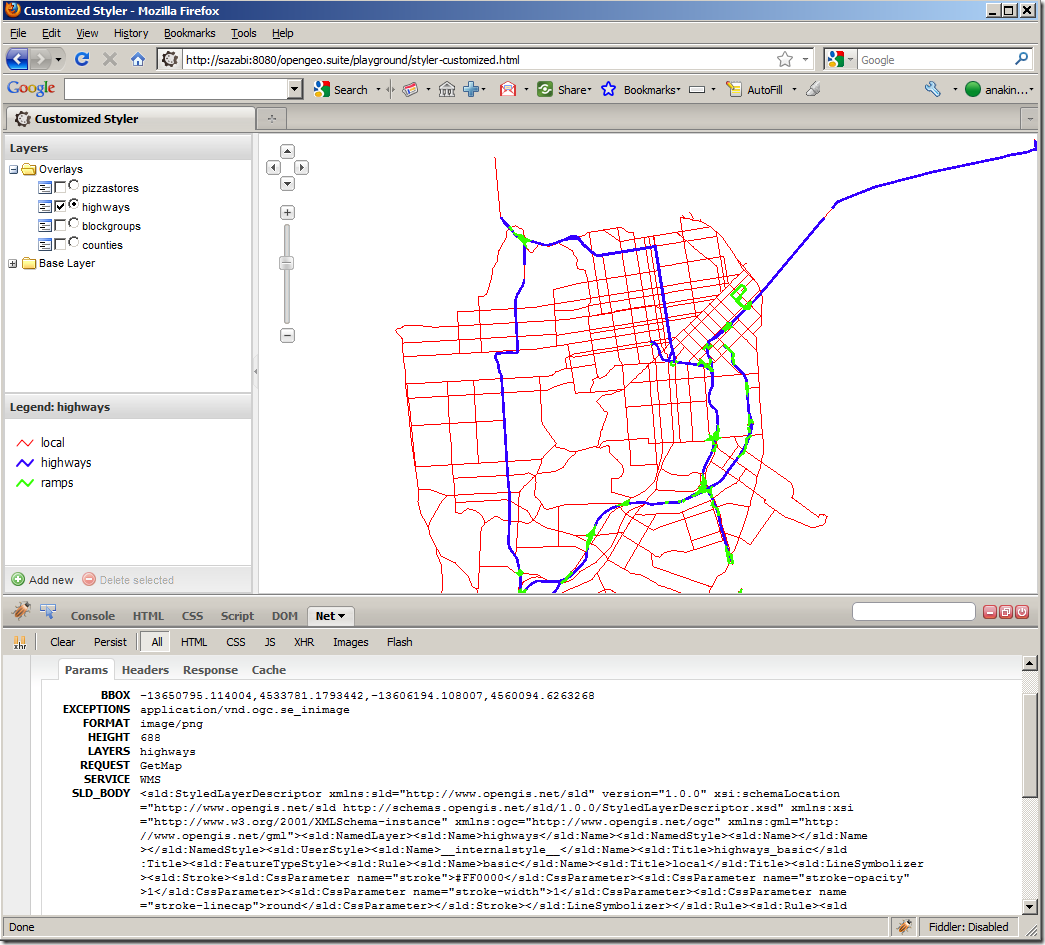
  • Styler is not using either standard WMS parameter “SLD” or “SLD_BODY” to make stateless change of map styles
  • Styler requires the WMS to support DescribeLayer interface
By briefly looking through its source code, I found it’s not too hard to overcome those issues and make Styler talk to a generic WMS server (e.g. ArcGIS Server) as long as the target WMS meets following prerequisites:
  • WMS must support EPSG:900913 (EPSG:3857 or Esri’s EPSG:102110 is ok but requires a little tweak in OpenLayers)
  • WMS must support GetStyle interface
  • Each layer in WMS must have a WFS feature type at back end in order to get attributes list
  • Each style of a WMS layer must have a SLD definition which can be retrieved through GetStyle
  • Optionally WMS needs to support PutStyle interface if one wants to persist SLD styles at server side
  • Optionally WMS needs to support SLD_BODY to make stateless change of rendering and symbology 
So in this article, I’m going to go through the basic steps to tweak the OpenGeo Styler to communicate with a non-GeoServer WMS:

1. Checkout Styler source code from http://svn.opengeo.org/suite/trunk/styler

2. Build Styler
sudo easy_install jstools
mkdir script
jsbuild build.cfg -o script
After a successful build there should be 4 js files in script folder.
Note: I only found out how I can build it on Linux, and I didn’t try on Windows

3. Setup debug environment for Styler
To launch Styler application simply follow the instructions here. By default, the index.html references merged and compressed js file in “script” folder, in order to modify and debug Styler you will need to reference those uncompressed js files in index.html as below:
1: ...
2: <script src="../styler/externals/openlayers/lib/OpenLayers.js"></script>
3: <script src="../styler/externals/ext/adapter/ext/ext-base.js"></script>
4: <script src="../styler/externals/ext/ext-all.js"></script>
5: <script src="../styler/externals/geoext/lib/GeoExt.js"></script>
6: <script src="../styler/script/gxp.js"></script>
7: <script src="../styler/lib/Styler.js"></script>
8: <script src="../styler/lib/Styler/dispatch.js"></script>
9: <script src="../styler/lib/Styler/ColorManager.js"></script>        
10: <script src="../styler/lib/Styler/SchemaManager.js"></script>
11: <script src="../styler/lib/Styler/SLDManager.js"></script>      
12: <script src="../styler/externals/ux/colorpicker/color-picker.ux.js"></script>
13: ...
Now you should be able to debug into OpenLayers and Styler in browser.

4. Hack the code
You don’t actually need to touch any code in OpenLayers or GeoExt, all changes are within three .js files in Styler itself, which are:
\lib\Styler.js
\lib\Styler\SLDManager.js
\lib\Styler\SchemaManager.js
Code changes in those files are explained in details below.

Code Changes in Styler.js

a. Add three properties for class Styler
1: // right before the “constructor”, and after other properties
2: ...
3: wmsUrl: "/geoserver/wms?",
4: wfsUrl: "/geoserver/wfs?",  
5: proxyUrl: "",
6: ...

b. Within Styler.js replace “/geoserver/wms?” or “/geoserver/ows?” with “this.proxyUrl + this.wmsUrl”, and replace “/geoserver/wfs?” with “this.proxyUrl + this.wfsUrl”. This is to allow user to point Styler to any WMS, either remote or local.

Note: there is one exception though, in method createLayers() you just need to replace “/geoserver/wms?” with this.wmsUrl because WMS layer doesn’t need a proxy to request map image.

c. Avoid using WMS DescribeLayer
1: //locate method:
2: describeLayers: function(callback) {
3:   ...
4: }
5: //Comment out original code and add following chunk of code
6: describeLayers: function(callback) {
7: for (var i=0, ii=this.wmsLayerList.length; i<ii; ++i) {
8:                   config = this.wmsLayerList[i];
9:                   // assume each WMS layer has a backend WFS layer
10:                   this.layerList.push(config);
11:             }
12:             callback();
13:   }
14: //here assumption is that every WMS layer has a WFS feature type at back end

d. If your WMS supports Google Mercator projection as something other than “EPSG:900913”, In method createLayers() you will need to add an extra parameter (e.g. “srs: ‘EPSG:3857’”) when creating each WMS layer
1: createLayers: function() {
2: ...
3:     layers.push(
4:     new OpenLayers.Layer.WMS(
5:         config.title, this.wmsUrl, {
6:         layers: config.name,
7:         styles: config.styles[0].name,
8:         transparent: true,
9:         format: "image/png",
10:         srs: "EPSG:3857"  // EPSG:3857, EPSG:102110 or EPSG:102113 etc.
11:         }, {
12:     }));
13: ...
14: }

e. Pass proxyUrl, wmsUrl and wfsUrl into SLDManager and SchemaManager
1: getSchemas: function(callback) {
2:             this.schemaManager = new Styler.SchemaManager(
3:             this.map,
4:             {
5:               proxyUrl: this.proxyUrl,
6:               wfsUrl: this.wfsUrl
7:             }
8:           );
9: 
10:   getStyles: function(callback) {
11:         this.sldManager = new Styler.SLDManager(this.map, {'proxyUrl': this.proxyUrl});
12:             this.sldManager.loadAll(callback);
13:       }
14: 
15:   initEditor: function() { {
16:   …
17:  this.sldManager = new Styler.SLDManager(this.map, {'proxyUrl': this.proxyUrl});
18:   ...
19: }
20: ...
21: 
22: // Note: the original constructors for SLDManager and SchemaManager takes a single input parameter
23: // but they will be modified to take 2nd input parameters in SLDManager.js and SchemaManager.js
24: 


Changes in SLDManager.js

a. Add an extra parameter called “proxyUrl” right before the constructor
1: // right before the “constructor”, and after other properties
2: ...
3: proxyUrl: "",
4: ...

b. Modify SLDManager constructor to take 2nd input parameter
1: initialize: function(map, options) {
2:     this.map = map;
3:     var layer;
4:     this.layers = [];
5:     this.layerData = {};
6:     this.format = new OpenLayers.Format.SLD({multipleSymbolizers: true});
7:     for (var i=0; i<this.map.layers.length; ++i) {
8:         layer = this.map.layers[i];
9:         if(layer instanceof OpenLayers.Layer.WMS) {
10:             this.layers.push(layer);
11:         }
12:     }
13:     // this is important so user can pass in ‘proxyUrl’
14:     OpenLayers.Util.extend(this, options);  
15: },

c. Overwrite getUrl() so it sends GetStyle request to retrieve WMS SLD defintion, here is an example
1: getUrl: function(layer, styleName) {
2:     var url;
3:     if(layer instanceof OpenLayers.Layer.WMS) {
4:         url = layer.url.split("?")[0] + "?" + "version=1.3.0&request=GetStyles&layers=" + layer.params["LAYERS"];       
5:         OpenLayers.Console.log(url);
6:     }
7:     //TODO handle other layer types
8:     return url;
9: }
10: 

d. In loadSld() method replace  this.getUrl(layer, styleName) with this.proxyUrl + this.getUrl(layer, styleName)
1: ...
2: loadSld: function(layer, styleName, callback) {
3:         Ext.Ajax.request({
4:             url: this.proxyUrl + this.getUrl(layer, styleName),
5:             method: "GET",
6:             …              
7: ...
8: // obviously there may be more than one styles for each WMS layer, 
9: // in this case the first style is always used.
10: 

e. In saveSld() method, replace original code with following to use “SLD_BODY” parameter to make stateless change of rendering and symbology
1: saveSld: function(layer, callback, scope) {
2:     this.layerData[layer.id].style.name = "__internalstyle__";
3:         var sldBody = this.format.write(this.layerData[layer.id].sld, {});
4:     layer.mergeNewParams({
5:       styles: "__internalstyle__", 
6:       sld_body: sldBody
7:     });
8:     callback.call(scope || this);  
9:   }
10: // By using “SLD_BODY” any change to the style is stateless which will not affect other users. 
11: // But if you want to persist modified styles on server side, 
12: // you must use WMS PutStyle operation and also make sure server supports it
13: 
14: 

Changes in SchemaManager.js

a. Add two extra parameters called “wfsUrl” and “proxyUrl” right before the constructor
1: // right before the “constructor”, and after other properties
2: ...
3: proxyUrl: "",
4: wfsUrl: “”,
5: ...

b. Modify SchemaManager constructor to take 2nd input parameter
1: initialize: function(map, options) {
2:             // other code
3: ...
4:             OpenLayers.Util.extend(this, options);
5:        ...     
6:             for(var i=0; i<this.map.layers.length; ++i) {
7:                   layer = this.map.layers[i];
8:                   if(layer instanceof OpenLayers.Layer.WMS) {
9:                         this.attributeStores[layer.id] = new GeoExt.data.AttributeStore({
10:                               //url: layer.url.split("?")[0].replace("/wms", "/wfs"),
11:                           // TODO: need better logic to handle case where this.wfsUrl is empty or must be derived from this.wmsUrl
12:                           url: this.proxyUrl + this.wfsUrl, 
13:                               baseParams: {
14:                                     //version: "1.1.1",    // is there a WFS 1.1.1?
15:                             version: "1.1.0",
16:                                     request: "DescribeFeatureType",
17:                                     typename: layer.params["LAYERS"]
18:                               }
19:                         });
20:                   }
21:             }
22:       }

5. Rebuild Styler and test against a generic WMS server.

So far the OpenGeo Styler has been hacked to communicate with a generic WMS server. To test it you just need to pass in the urls for WMS, WFS and proxy into Styler constructor in the original index.html like below.
1: Ext.BLANK_IMAGE_URL = "theme/img/blank.gif";
2: Ext.onReady(function() {
3:     window.styler = new Styler({
4:         baseLayers: [                              
5:             new OpenLayers.Layer.OSM(
6:                 "Open Street Map",
7:                 "http://tile.openstreetmap.org/${z}/${x}/${y}.png",
8:                 {numZoomLevels: 19}
9:             )                                                             
10:         ],                        
11:         wmsUrl:"http://localhost:8399/<WMSServer_endpoint>?",
12:         wfsUrl:"http://localhost:8399/<WFSServer_endpoint>?",
13:         proxyUrl: "http://locahost:8080/openlayers-trunk/ApacheProxyServlet?url="
14:     });
15: });

Some screenshots:

image
Styler load SLD style definition through WMS GetStyle operation
image
Styler changes map symbology through SLD_BODY parameter


6. Things to improve
  • If a layer has more than one styles, provide GUI for users to select 
  • Make OpenGeo Styler to persist SLD styles on server through WMS PutStyle operation